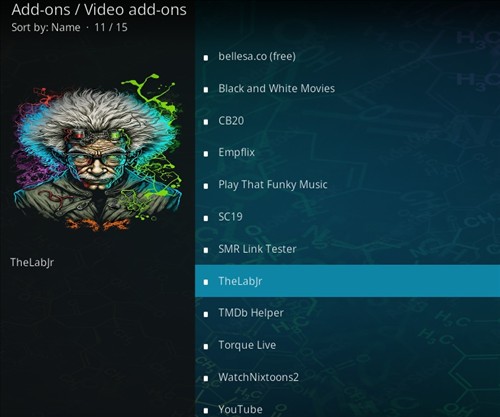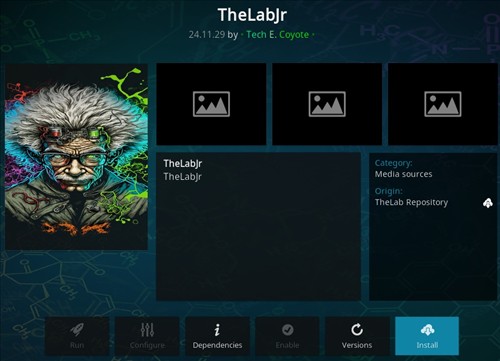
TheLabjr is an all-in-one Kodi addon located in the TheLab Repository with many sections.
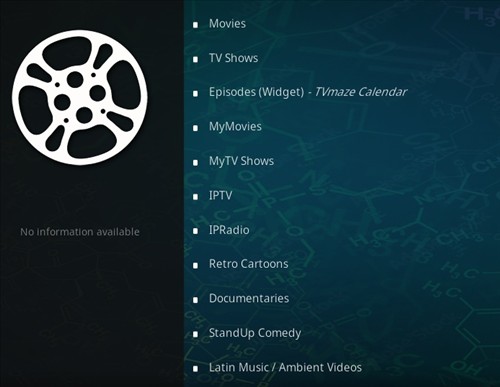
The main menu has sections for Movies, TV shows, Episodes, My Movies, My TV shows, IPTV, IP Radio and much more.
TheLabjr is a good addon which has free links, but it can be hit or miss if they work.
*WirelesSHack.org has No affiliation with Kodi, any Addons, Repos, or Builds. WirelesSHack.org is a news and informational site which does not support or condone copyright infringement. Kodi should only be used with content that is bought and owned personally or is in the public domain.
TheLabjr Kodi Addon Location and Info
- Addon Name: TheLabjr
- Repo Name: TheLab Repository
- Repo URL: https://tinyurl.com/TheL48
- Alternative Repo URL: https://www.midian.appboxes.co/wolfyB/Th3L48/repo/
- Kodi Version Compatibility: 20 Nexus and 21 Omega
How To Install TheLabjr Kodi Addon
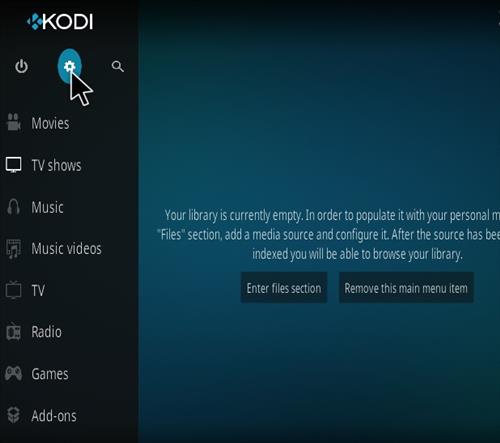
- At the top left click the System Settings Icon
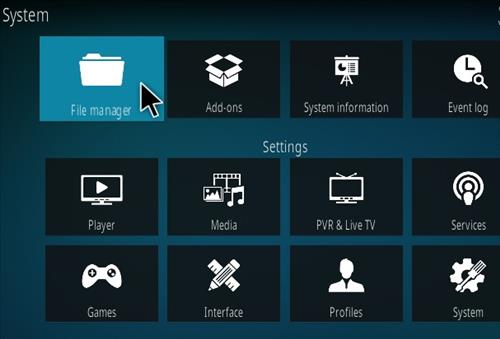
- Click File Manager
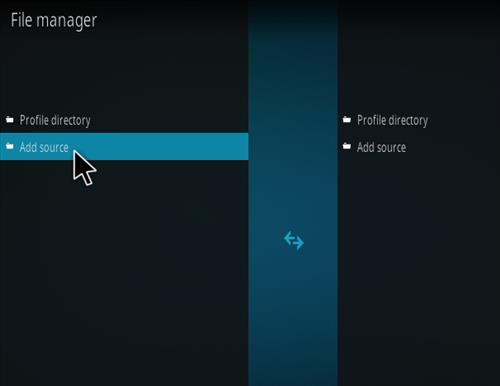
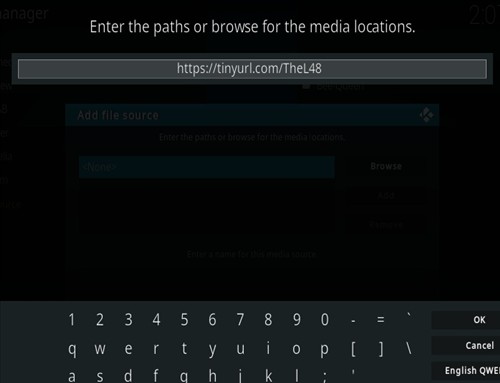
- On the left click Add Source
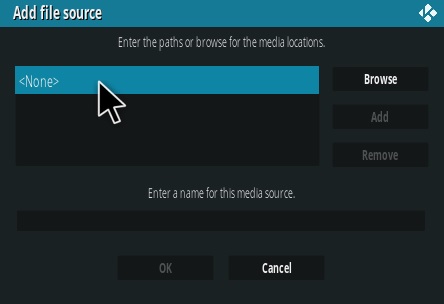
- Click where it says NONE
- Type in the URL: https://tinyurl.com/TheL48
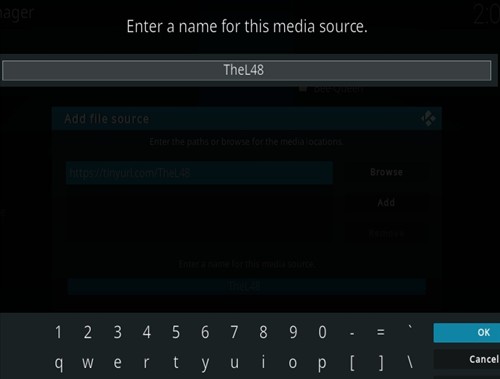
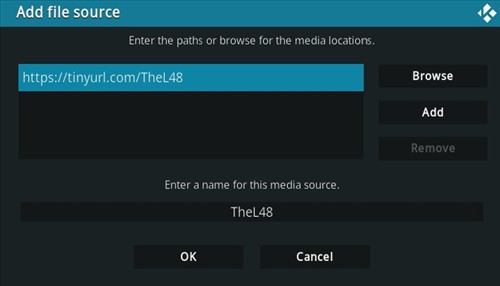
- In the next box down name it TheL48 and click OK
- Double check everything is correct and click OK
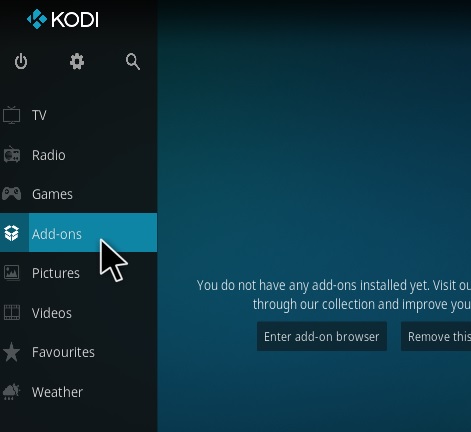
- Go back to the main menu and click Add-ons
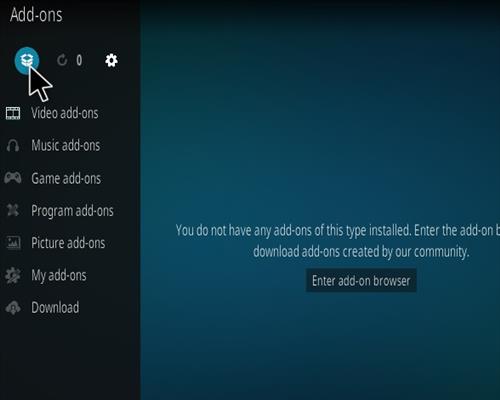
- Click the Add-on Package Installer Icon at the top left
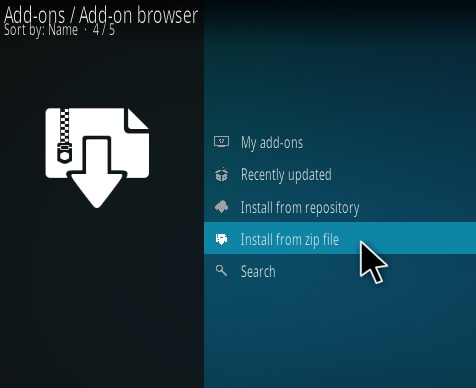
- Click Install from zip file
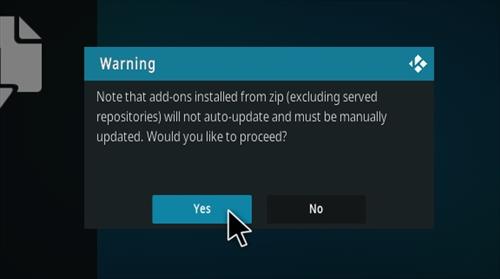
- Click Yes on the Warning popup and if not already be sure Unknown Sources is enabled
- A box will pop open select TheL48
- Click repository.thelab-25.3.27.zip (If there is a new version install it.)
- Wait for the Repository to download and popup at the top right and say Repo Installed
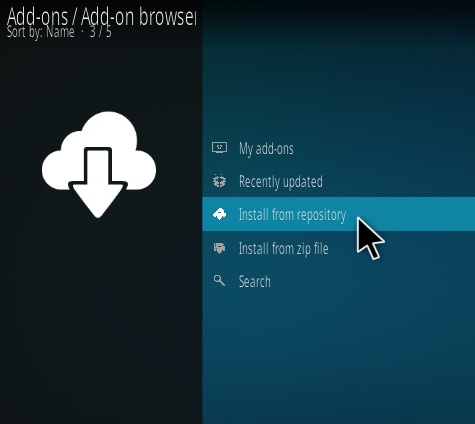
- Click Install from repository
- Click TheLab Repository
- Video Add-ons
- Click TheLabjr
- Click Install