Roku is a live streaming addon located in the SlyGuy Repository that streams Roku channel content.
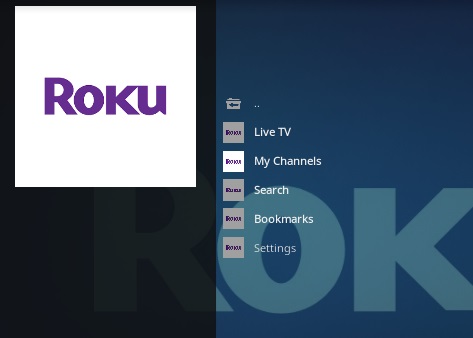
The main section has categories for Live TV, My Channels, Search, Bookmarks, and Settings.
There is also many subcategories including Action, Adventures, Animals, Animated, and much more.

Roku is also available for free with an app, using a standard browser, and comes preinstalled on many new smart TVs.
It has many free movies, TV shows, and live TV channels with streams working very well with no buffering.
Looking to upgrade to a new Kodi TV box? Check out our top picks for Best Kodi Android TV Boxes.
*WirelesSHack.org has No affiliation with Kodi, any Addons, Repos, or Builds. WirelesSHack.org is a news and informational site which does not support or condone copyright infringement. Kodi should only be used with content that is bought and owned personally or is in the public domain.
Roku Kodi Addon Location and Info
- Addon Name:Roku
- Repository Name: SlyGuy Repository
- Repo URL: https://slyguy.uk/
- Alternative URL: https://k.slyguy.xyz/
- Kodi Version Compatibility: 20 Nexus and 21 Omega
How To Install Roku Kodi Addon
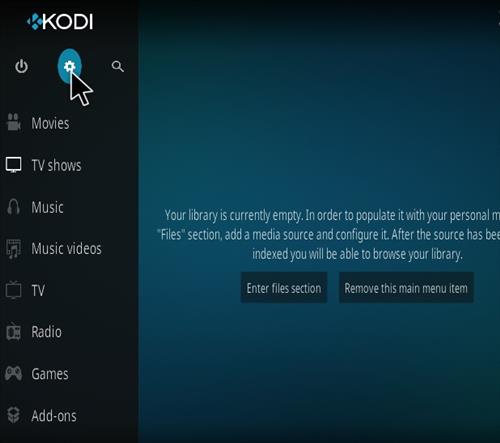
- At the top left click the System Settings (Gear Icon)
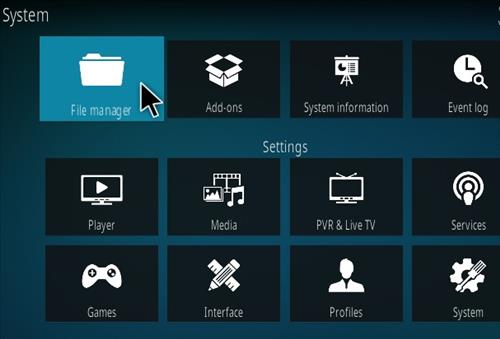
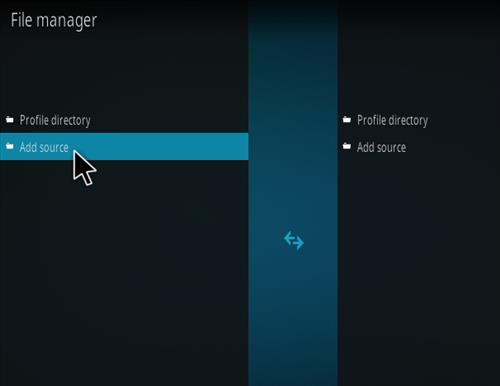
- Click File Manager
- On the left click Add Source
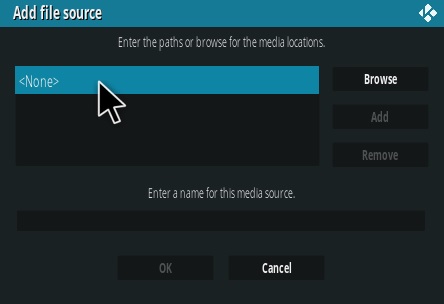
- Click where it says NONE
- Type in the URL: https://slyguy.uk/
- In the next box down name it slyguy and click OK
- Double check everything is correct and click OK
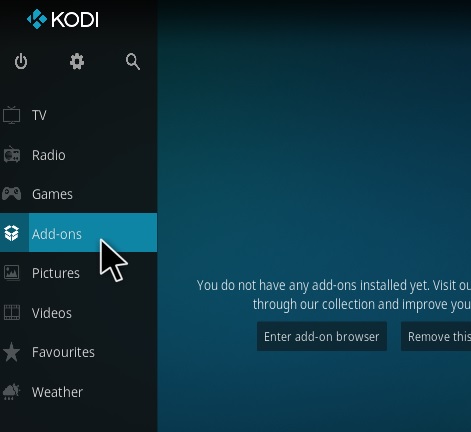
- Go back to the main menu and click Add-ons
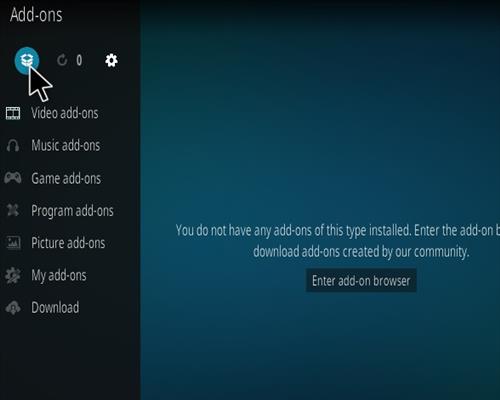
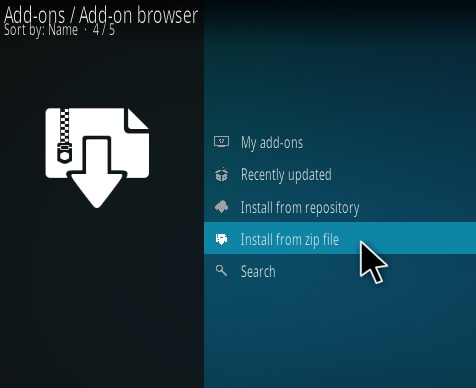
- Click the Add-on Package Installer Icon at the top left
- Click Install from zip file
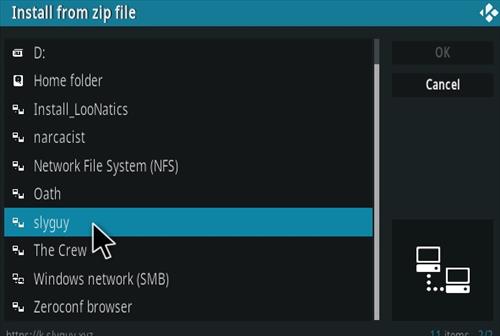
- A box will pop open select slyguy
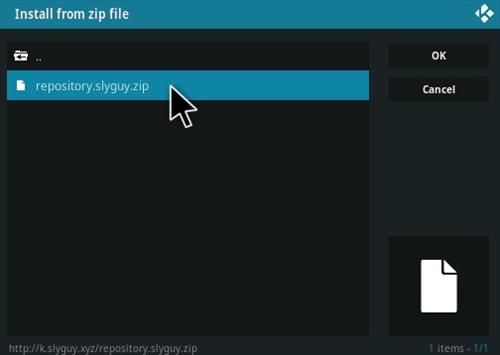
- Click repository.slyguy.zip
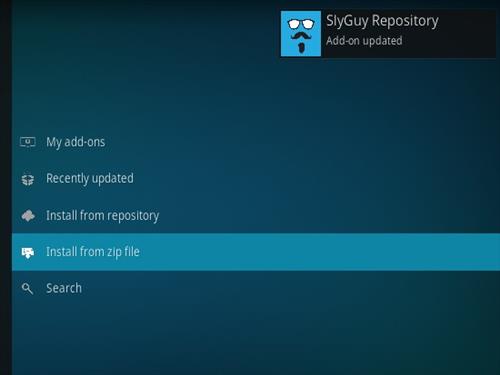
- Wait for the Repository to download and popup at the top right and say Repo Installed
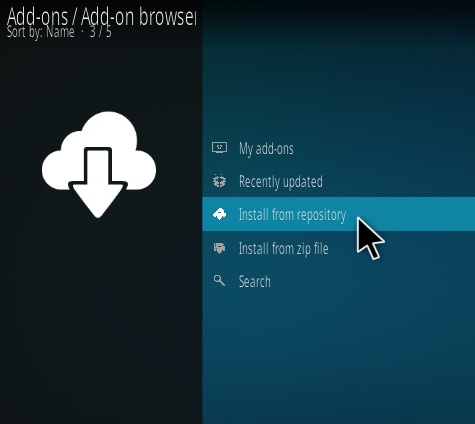
- Click Install from repository
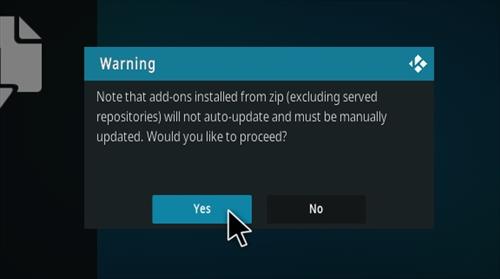
- Click Yes on the Warning popup and if not already be sure Unknown Sources is enabled
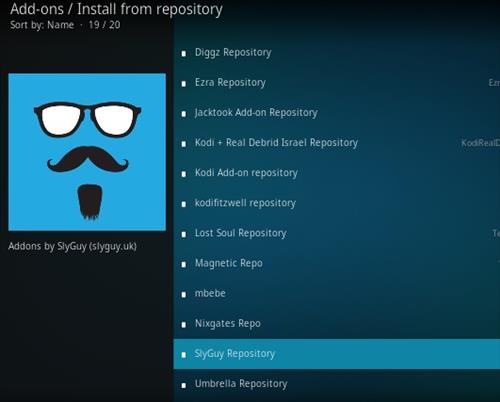
- Click SlyGuy Repository
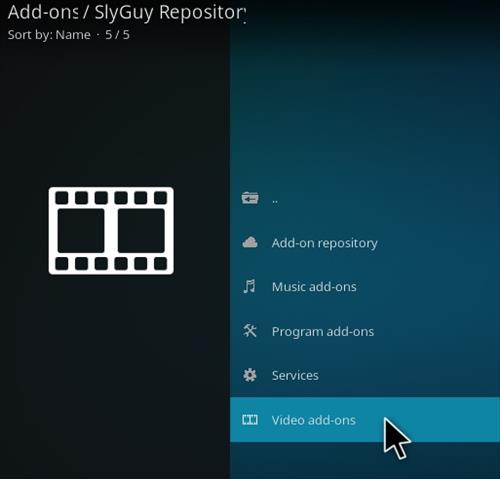
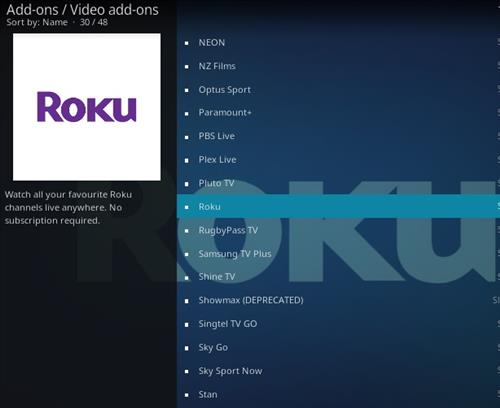
- Video Add-ons
- Scroll down find and click Roku
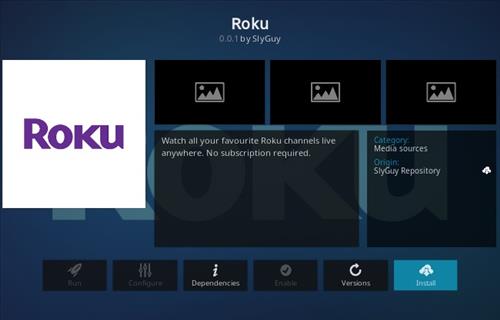
- Click Install


ROKU IS DOWN PER sLY gUY DEVELOPER
Roku tells me no iitemcan you help
ROKU IS DOWN PER THE DEVELOPER